| Windows Guides’ Rating | User Rating | Compatible with | System |
 5 out of 5 |   (4 votes, average: 4.75 out of 5) (4 votes, average: 4.75 out of 5) |    |   |
 PROS:
A simple application that lets you control multiple PCs with one
keyboard and mouse. The concept isn’t new but the execution is clean and
simple and simple file drag and drop as well as seamless copy/paste
make this a great tool. PROS:
A simple application that lets you control multiple PCs with one
keyboard and mouse. The concept isn’t new but the execution is clean and
simple and simple file drag and drop as well as seamless copy/paste
make this a great tool.CONS: None VERDICT: This is even easier to use than Synergy and InputDirector. If you want a no-frills solution to a virtual KVM (minus the video switching), this application will almost certainly satisfy. PRICE: Free VERSION REVIEWED: 2.1.0.9 DOWNLOAD: Mouse without Borders |
Mouse without Borders Features
We’ve reviewed a couple of virtual-KVMs (keyboard, video, mouse controllers), technically KMs, on Windows Guides: Synergy and InputDirector and they both work well. This time, we bring you another option: Microsoft Garage Mouse without Borders.Mouse without Borders (MWB) takes the agony out of setting multiple PCs with one keyboard and mouse. You don’t need to worry about IP addresses, network names etc. It doesn’t really get much easier than this. With that said, here’s how to set up MWB for the first time:
1. Download and install Mouse without Borders
2. Start the Program and click No

3. Write down the security code and computer name:

4. Now install Mouse without Borders on your second PC and, instead of clicking No, click Yes. When prompted, type the security code and computer name provided on your first PC. Click Link.

5. Now you are ready to control two (or more) PCs with your mouse and keyboard:

Mouse without Borders Configuration
Once set up, MWB doesn’t need any more configuration. However, if you link multiple PCs (each with their own monitor on the same desk), you might want to re-order them to match their physical footprint.1. In the System Tray, right click the MWB icon and click Settings
2. Here you can drag and drop the order of machines:

3. Click the Other Options tab to configure keyboard shortcuts (you’ll want to at least use the Switch between machines shortcut to save time and help focus on one PC at a time.)

You can take screen captures from connected PCs using “Get Screen Capture from“. This is useful if you have a download running and want to monitor it periodically or if you want to, you know, “spy” on your own PCs.

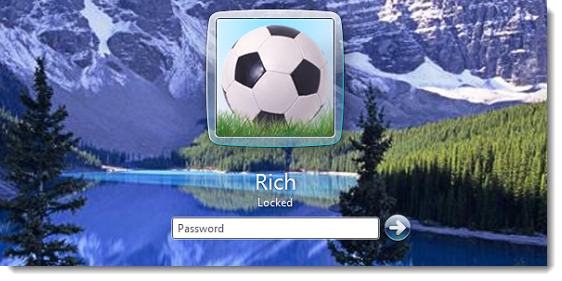
You can even configure your logon screen… perhaps it’s a way to tell which PC you are on—even if it’s locked. To do so, right click the MWB icon and click Personalize Logon Screen and choose a screen (In the System Tray.) Voila!
My only gripe is that I couldn’t set up my second PC via RDP. This is, of course, by design so you don’t distort reality and cause funky things to happen… I’m just lazy and I really didn’t want to actually go to the PC to install it. So, I used Team Viewer…


Tidak ada komentar:
Posting Komentar